Charging the Unit
To charge the HMT-1 battery while installed in the HMT-1, use the included Wall Charger and USB-C cable.
To recharge the battery:
1. Connect the USB Type-C charging cable to the Type-C USB port located under the rubber lid on the rear of the boom-side housing. Using the USB-C cable and USB C port will ensure the shortest charging time.
2. Connect the charging cable to the wall charger.
3. Plug the wall charger into an electrical outlet.
The power button LED will blink throughout the charging cycle, changing color from Red to Yellow to Green, depending on the amount the battery has charged.
Battery | LED Color | USB-C Plugged In |
extremely low or dead | Red | Yes |
less than 100% and charging | Yellow | Yes |
full | Green | Yes |
The battery icon will ‘fill up’ indicating its state of charge.
Turning on the Unit
Before putting the HMT on your head, press and hold down the power button for about three seconds then release the power button.
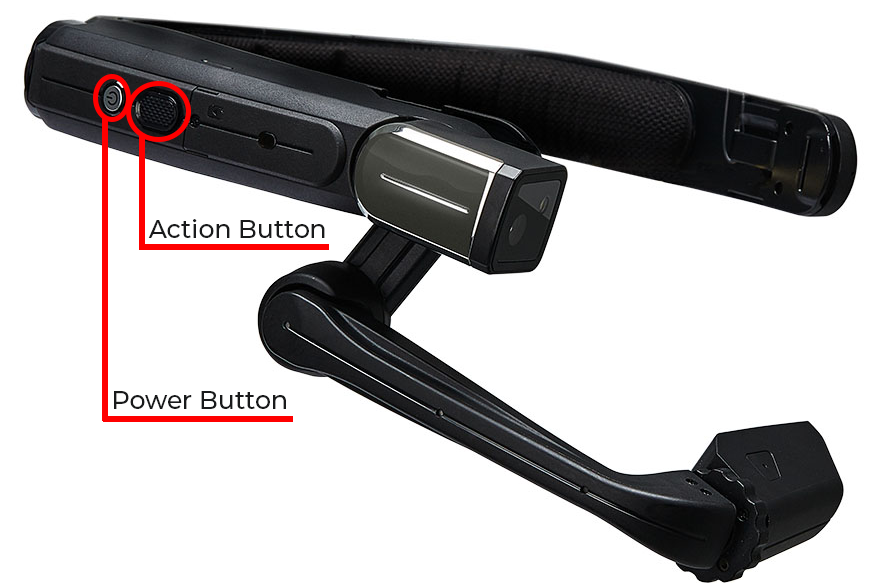
The power button is the round silver button on the same side of the HMT as the boom arm/display.
In about ten to fifteen seconds you will hear a sound as the start-up sequence completes. The HMT is now powered on and ready to wear.
You should now be able to see the screen.
Power Button
Action | How to Do It |
Power On | Press and hold the silver power button (roughly 3 seconds) until startup completes. |
Power Off | Press and hold the power button (roughly 3 seconds) until shutdown. |
Reboot | Press and hold the power button to turn back on. |
Sleep / Wake | Briefly press the power button (for less than a second) to toggle sleep/wake. |
Action Button
The user can set the action completed by the Action Button in My Controls. There are two options:
Home Menu (default): Pressing the Action Button will take the user to the Home Menu.
Noise Capture: Noise Capture mode pressing the Action Button will alternatively disable or enable the noise cancellation ability of the HMT, allowing external noise to be captured in video/audio transmission and recordings.
Was this article helpful?
That’s Great!
Thank you for your feedback
Sorry! We couldn't be helpful
Thank you for your feedback
Feedback sent
We appreciate your effort and will try to fix the article