Meetings | ARGO
When logging in to RemoteSpark using a Microsoft Account, a new option will appear on the home menu called Meetings.
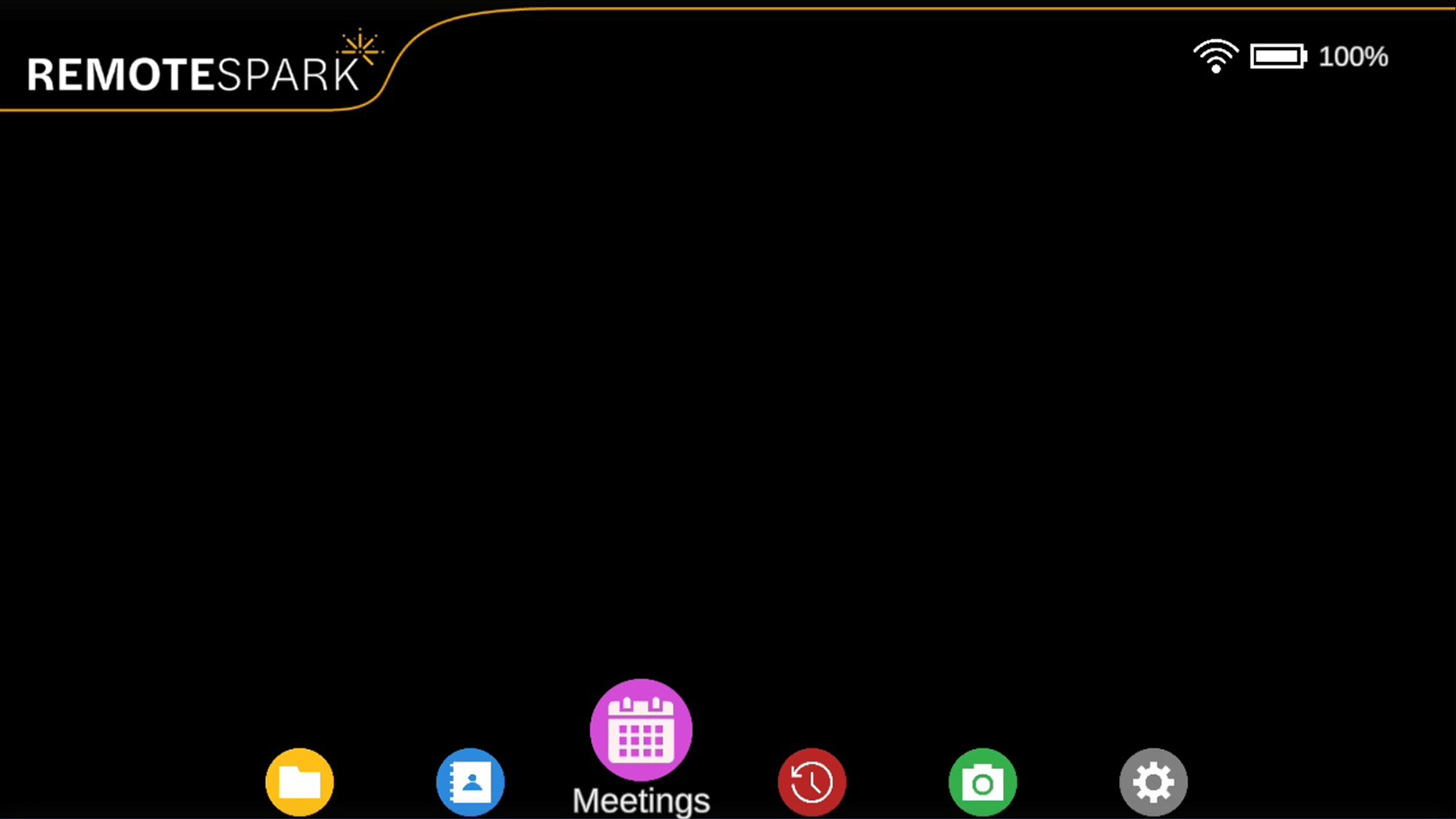
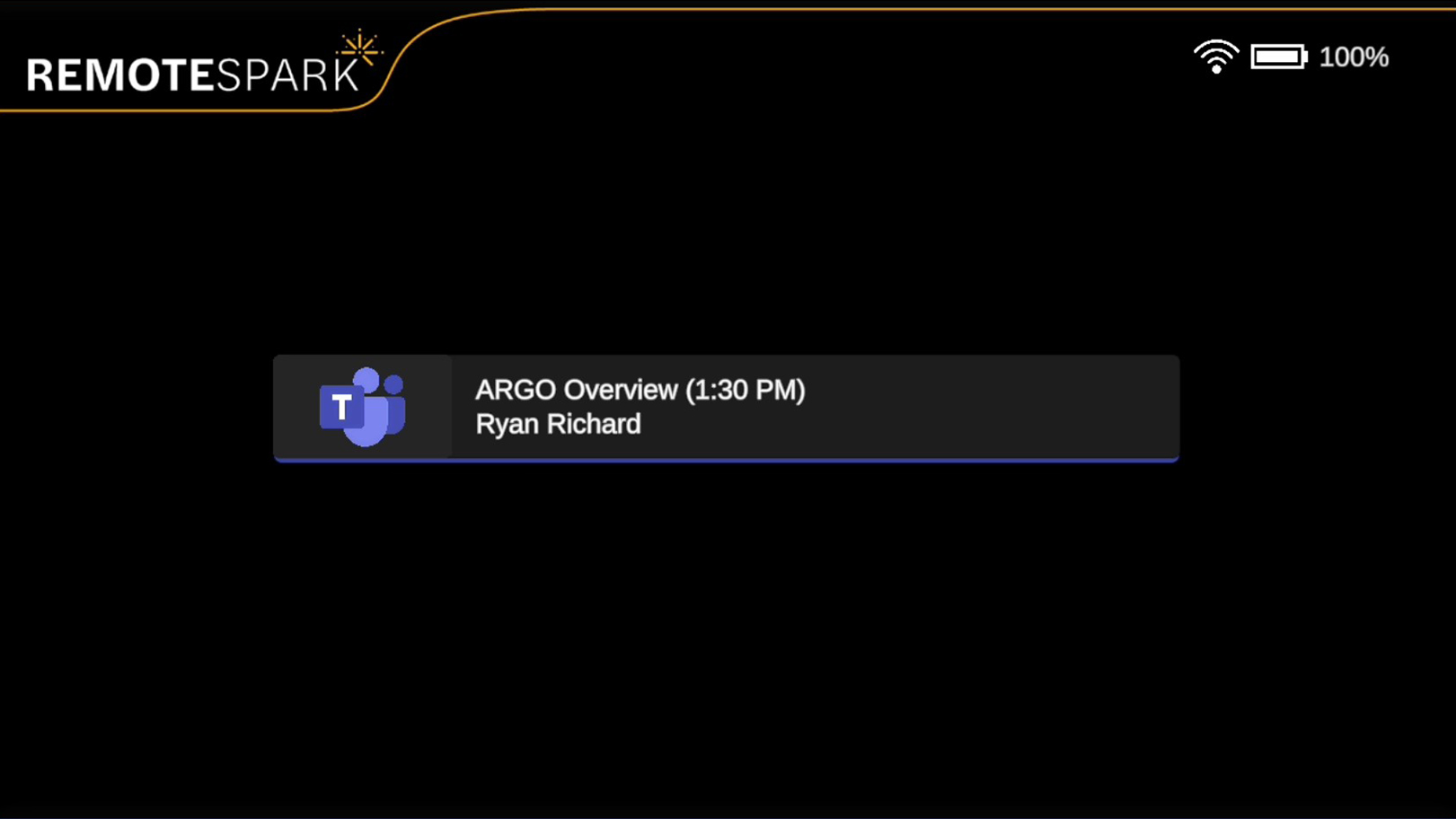
When selecting Meetings, a list of scheduled events and meetings will display. These include meetings scheduled within 4 hours before and 12 hours after the current time. You can select any of these to join the meeting with the listed attendees.
Important Note:
- If a meeting or event is created while you're on the Meetings screen, it will not automatically appear. To refresh the list, return to the home menu and re-enter the Meetings section.
- The ARGO user is required to be added as a member of the Teams meeting. If the meeting link is forwarded, the user will not be able to join the Team's meeting via the ARGO.
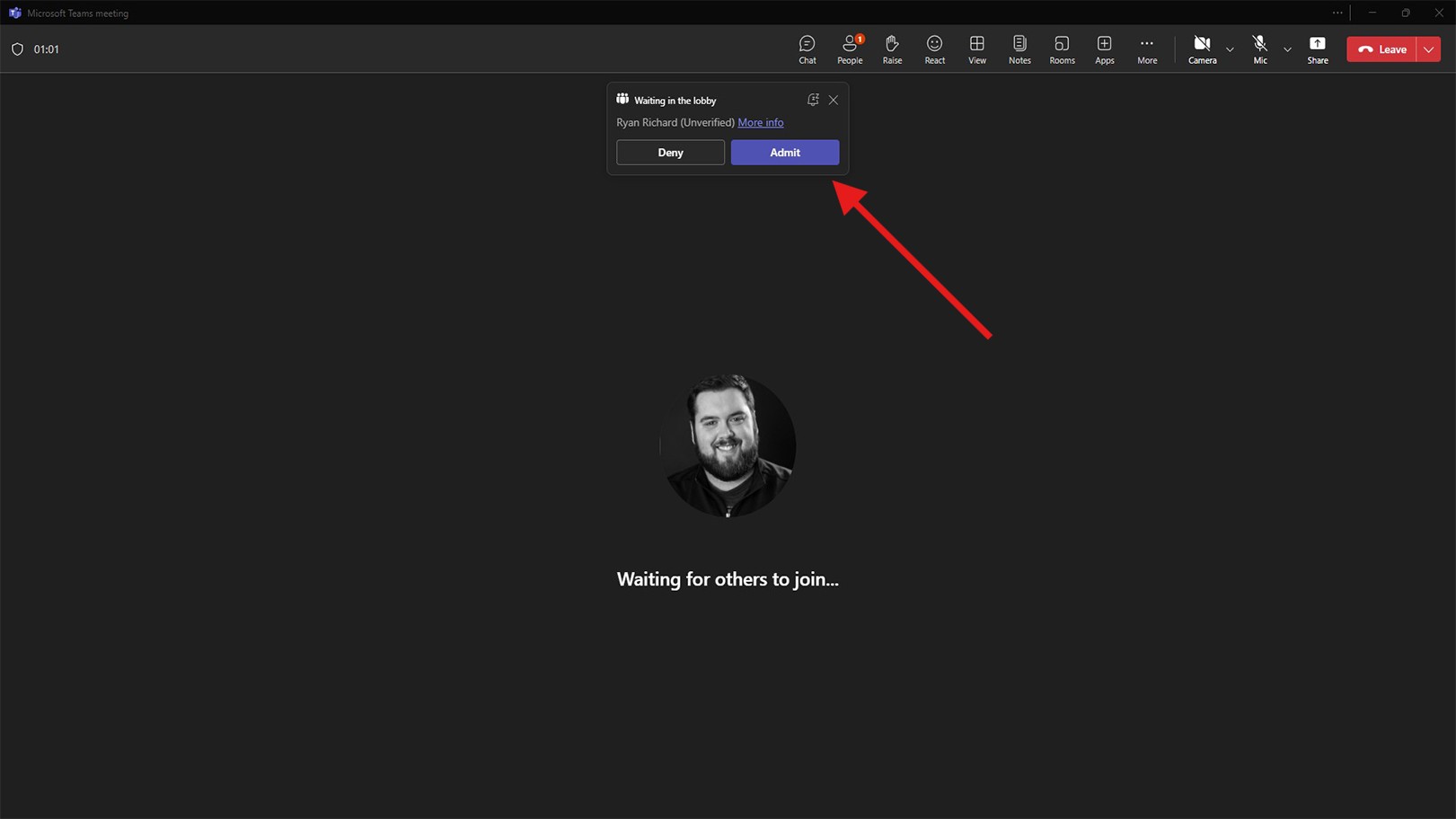
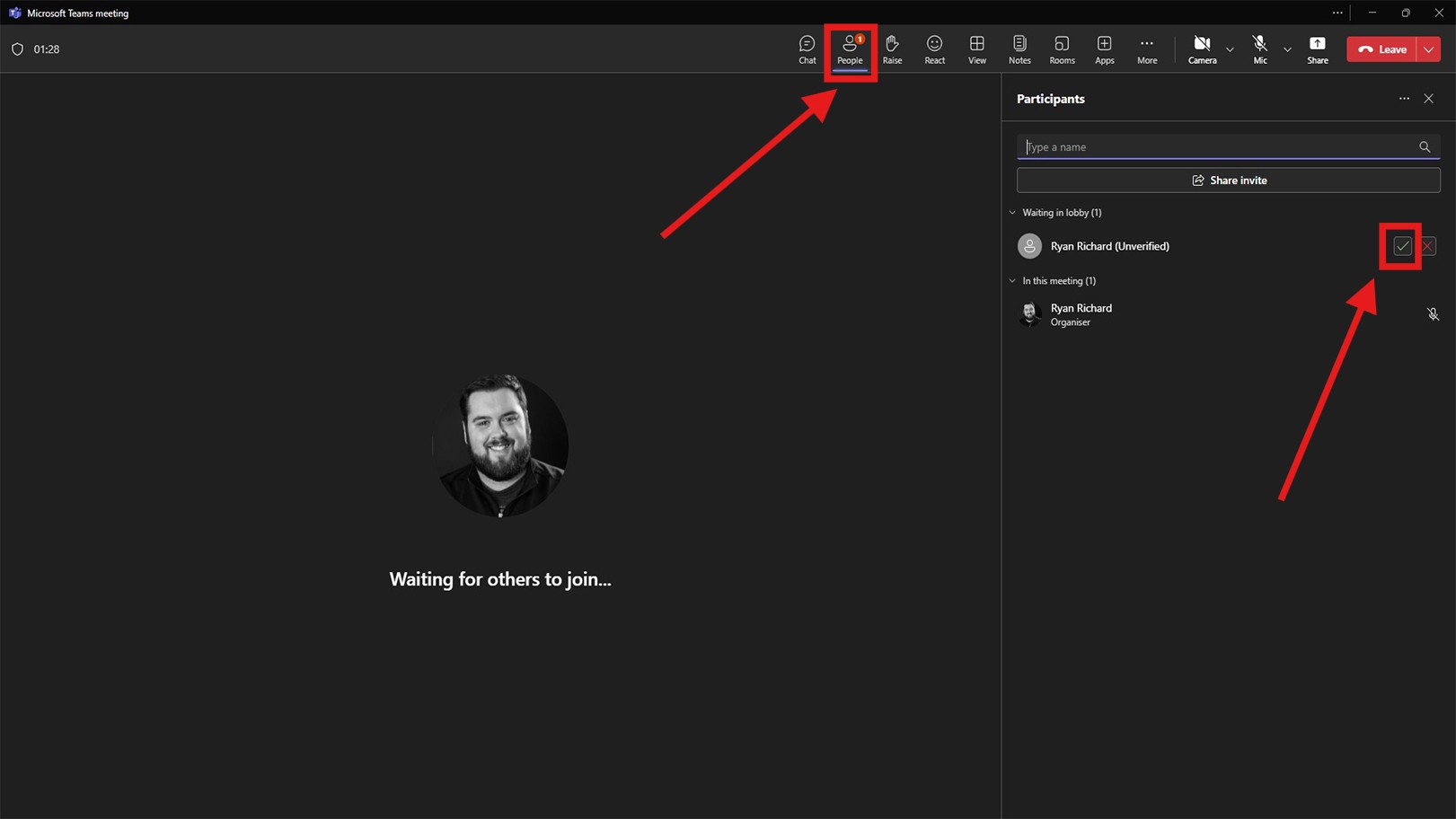
When you select a meeting, a prompt will be sent to the owner of the Microsoft Teams meeting to admit the ARGO user. The meeting owner can also manually admit the ARGO user by selecting People, then clicking the green checkmark next to their name.
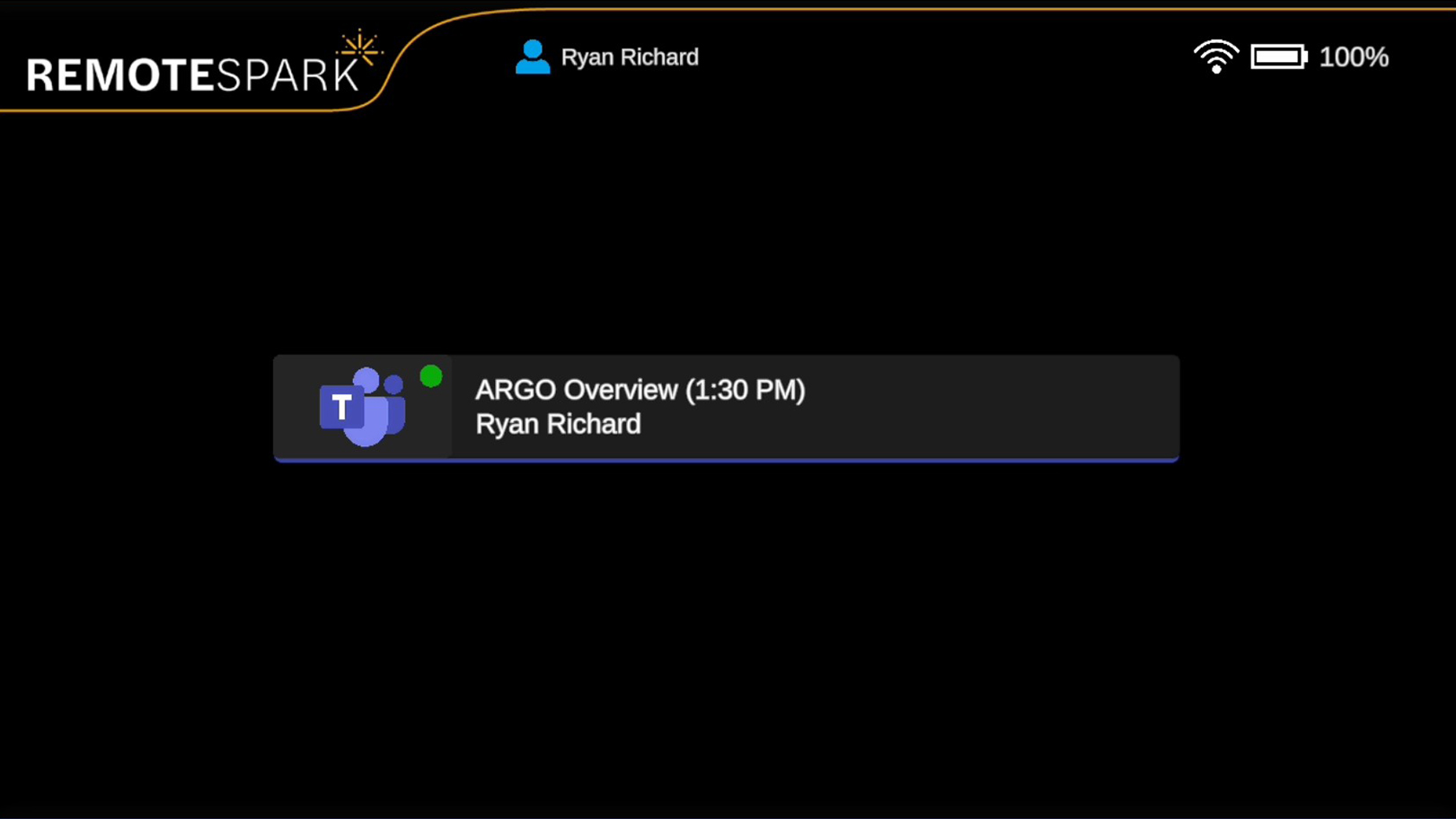
Once the ARGO user has joined the meeting, a green dot will appear next to the Teams logo on the ARGO interface, indicating which meeting has been joined. Additionally, the meeting owner’s name will appear at the top of the screen, confirming an active call.
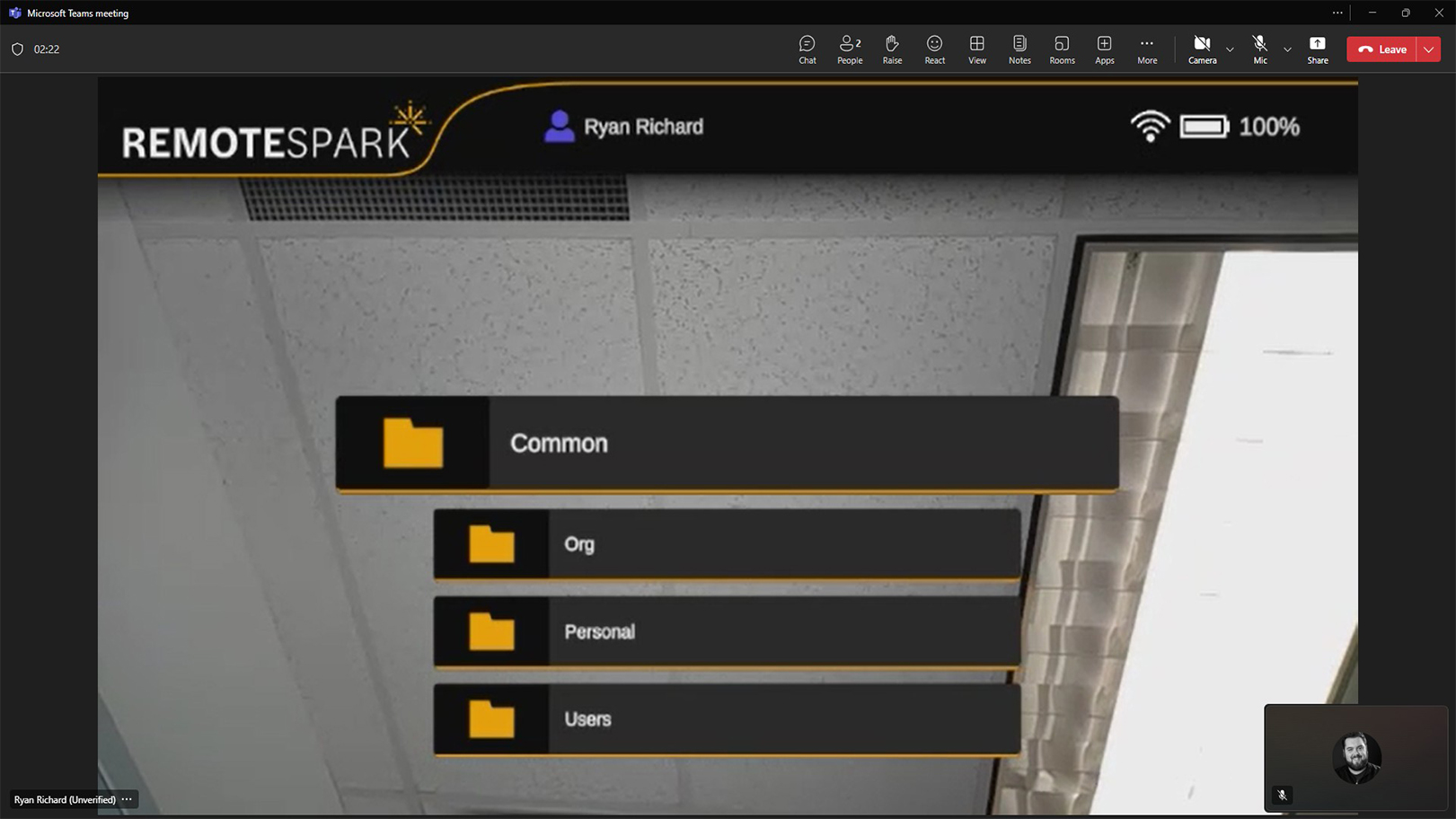
During the meeting with ARC turned on, all participants in the teams call can see the content that the ARGO users is viewing.
Note: No participant is able to send content over through the Teams meeting to the ARGO user. Such as take picture, inking or sending over PDF's. However the ARGO user can take pictures and access any content within their library.
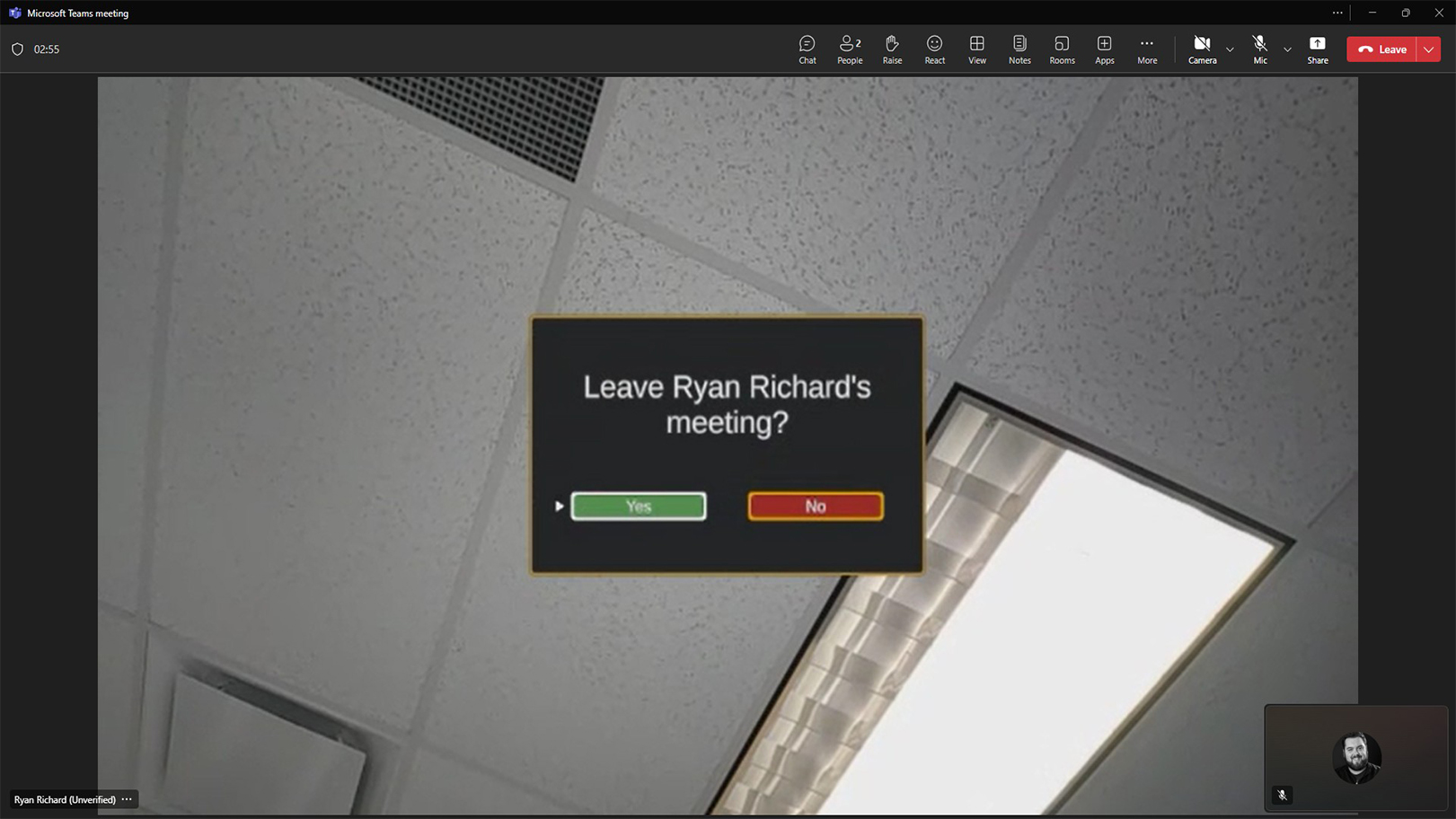
To leave a meeting, go to the Meetings menu and select the meeting marked with a green dot. A pop-up will appear, click Yes to successfully leave the meeting.
Was this article helpful?
That’s Great!
Thank you for your feedback
Sorry! We couldn't be helpful
Thank you for your feedback
Feedback sent
We appreciate your effort and will try to fix the article